VLESS on OpenWrt (Podkop)
OpenWrt is an alternative operating system that can be installed on most routers. The article assumes that you already have a router with OpenWrt.
Podkop is a utility for OpenWrt that provides a convenient web interface for managing VPNs using various protocols, including AmneziaWG 2 and VLESS.
VLESS (XTLS-Reality) obfuscates your traffic as regular TLS, making it look like typical browser activity when accessing popular websites or services. We recommend using this protocol if your ISP employs strict traffic filtering. In other cases, you can configure the AmneziaWG 2 protocol using our guide via Podkop.
Before installation, make sure that:
• OpenWrt 24.10.4 is installed on the router
• at least 30 MB of free space is available (recommended)
• you have SSH access to the router with root privileges
• you have created a vless:// link in the Personal Area
Installing Podkop
1. Connect to the router by running the command:
ssh root@192.168.1.1Or specify a different router IP address.
2. Run the command:
sh <(wget -O - https://raw.githubusercontent.com/itdoginfo/podkop/refs/heads/main/install.sh)If Podkop is already installed, the script will automatically update it to the latest version.
Possible conflicts
For Podkop to work correctly, it is recommended to:
• remove getdomains if it was previously installed
• remove or disable https-dns-proxy if it is being used
Setting up VLESS (XTLS-Reality) in Podkop
Important!
When using VLESS via Podkop, not all router traffic is routed through the VPN interface—only certain resources. By default, the Russian Inside list is used. You can read more about the lists on GitHub.
3. Go to Services → Podkop
4. Specify:
Connection type: Proxy
Proxy configuration URL: vless://…
Community lists: Russia Inside (or any other list of your choice)

5. Click Save & Apply.
6. You can configure routing by selecting one of the offered community lists (more details can be found on GitHub), or by setting up routing manually by choosing Text List under the Custom Domain List type and entering the domains you are interested in.
Additionally, you can add External Domain Lists or External Subnet Lists by specifying their URLs in the corresponding field in .srs format.
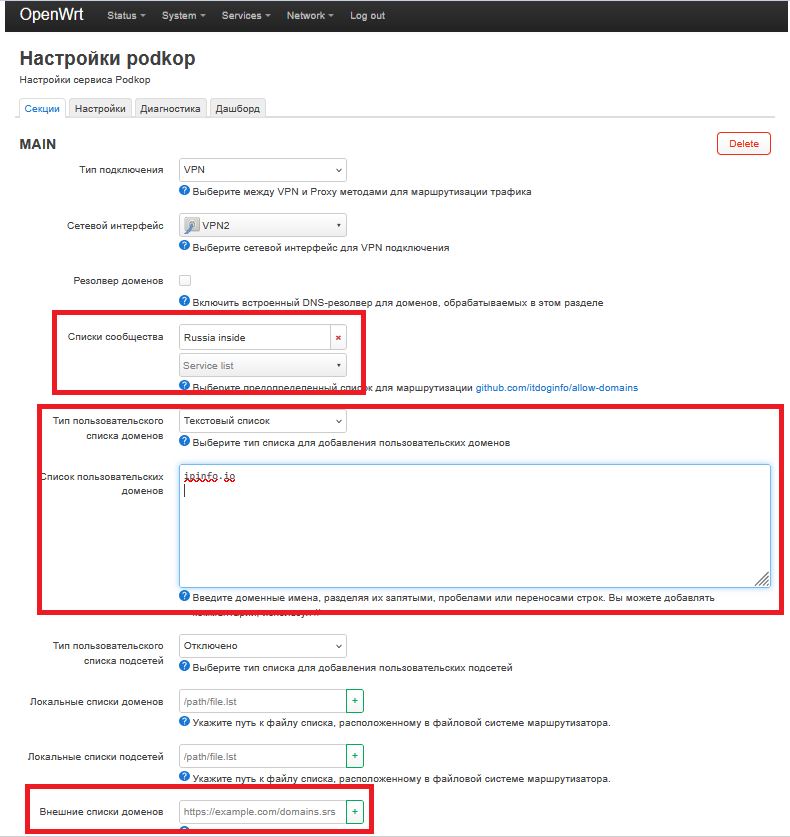
After this, devices connected to the router will use the VPN connection according to the routing configured in step 4 or 6.