AmneziaWG 2 on OpenWrt (Podkop)
OpenWrt is an alternative operating system that can be installed on most routers. The article assumes that you already have a router with OpenWrt.
Podkop is a utility for OpenWrt that provides a convenient web interface for managing VPNs using various protocols, including AmneziaWG 2 and VLESS.
AmneziaWG 2 is a modified version of the WireGuard® protocol. Its main purpose is to bypass DPI (Deep Packet Inspection) and other VPN blocking methods that can easily detect “classic” WireGuard®.
If your ISP does not enforce strict filtering on UDP (i.e., limits UDP connections), we recommend using this protocol. In other cases, please configure the VLESS (XTLS) protocol using our guide via Podkop.
Before installation, make sure that:
• OpenWrt 24.10.4 is installed on the router
• at least 30 MB of free space is available (recommended)
• you have SSH access to the router with root privileges
• you have created and downloaded the configuration file from your Personal Area
Installing Podkop
1. Connect to the router via SSH:
ssh root@192.168.1.1Or specify a different router IP address.
2. Run the command:
sh <(wget -O - https://raw.githubusercontent.com/itdoginfo/podkop/refs/heads/main/install.sh)
Possible conflicts
For Podkop to work correctly, it is recommended to:
• remove getdomains if it was previously installed
• remove or disable https-dns-proxy if it is being used
Configuring AmneziaWG on an OpenWrt router
3. Install the required AmneziaWG packages:
sh <(wget -O - https://raw.githubusercontent.com/Slava-Shchipunov/awg-openwrt/refs/heads/master/amneziawg-install.sh)4. When prompted:
Do you want to configure the amneziawg interface? [Y/n]
Enter:
n
Creating an AmneziaWG Interface via LuCI
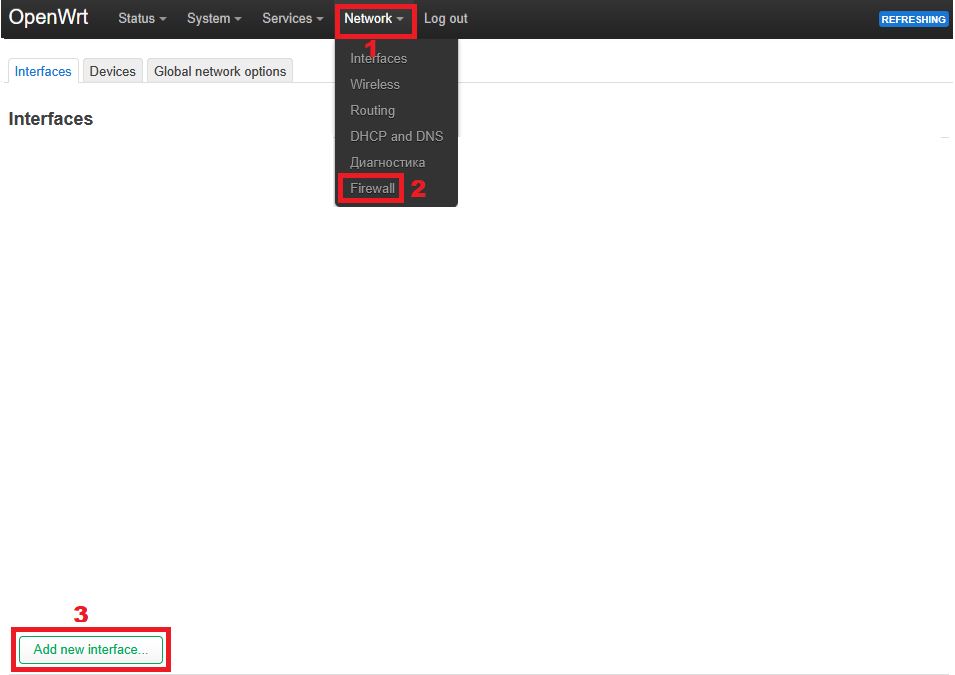
5. Open the router’s web interface in a browser: http://192.168.1.1 (or specify a different router IP) and go to: Network → Interfaces → Add new interface:
6. Specify the parameters:
• Name: VPN (or any other name of your choice)
• Protocol: AmneziaWG Protocol

7. Click Create interface.
Importing the Configuration File
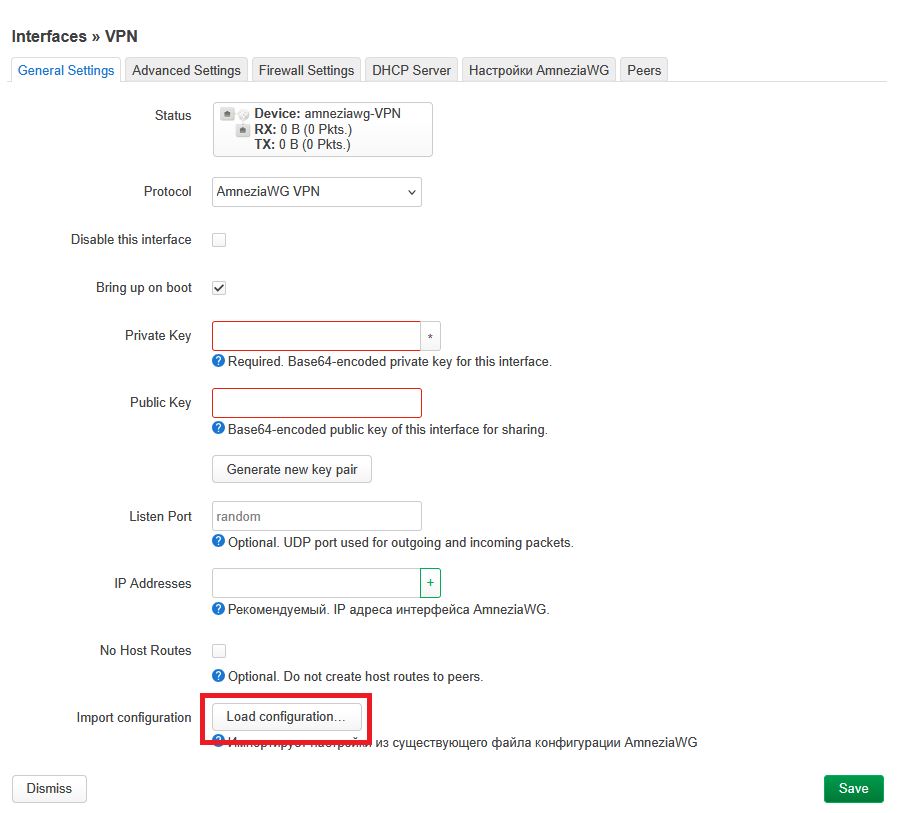
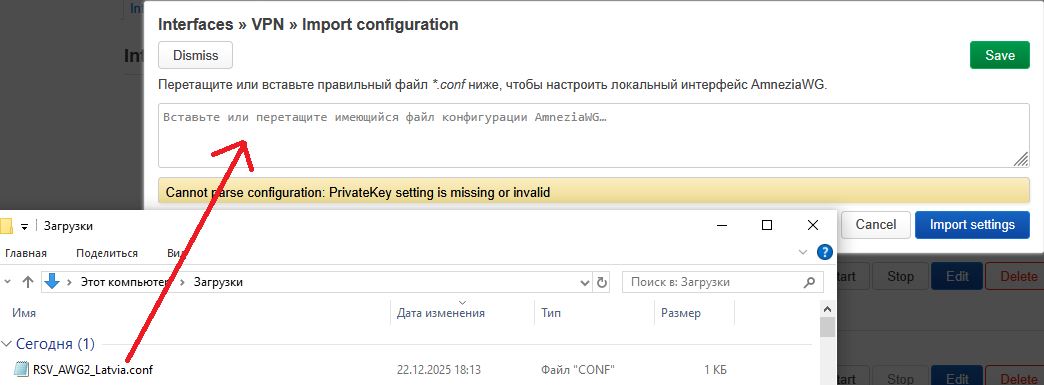
8. In the interface settings, click Load Configuration and paste the contents of the .conf file or upload it entirely.
Click Import settings (if necessary).
Checking the Parameters
9. Open the configuration file in a text editor and verify that the values match:
In the "General Settings" tab:
Private Key
IP Addresses — from the [Interface] section
In the "AmneziaWG Settings" tab:
S1, S2, S3, S4
Jc, Jmin, Jmax
H1, H2, H3, H4
In the "Peers" tab:
Public Key
Allowed IPs: 0.0.0.0/0
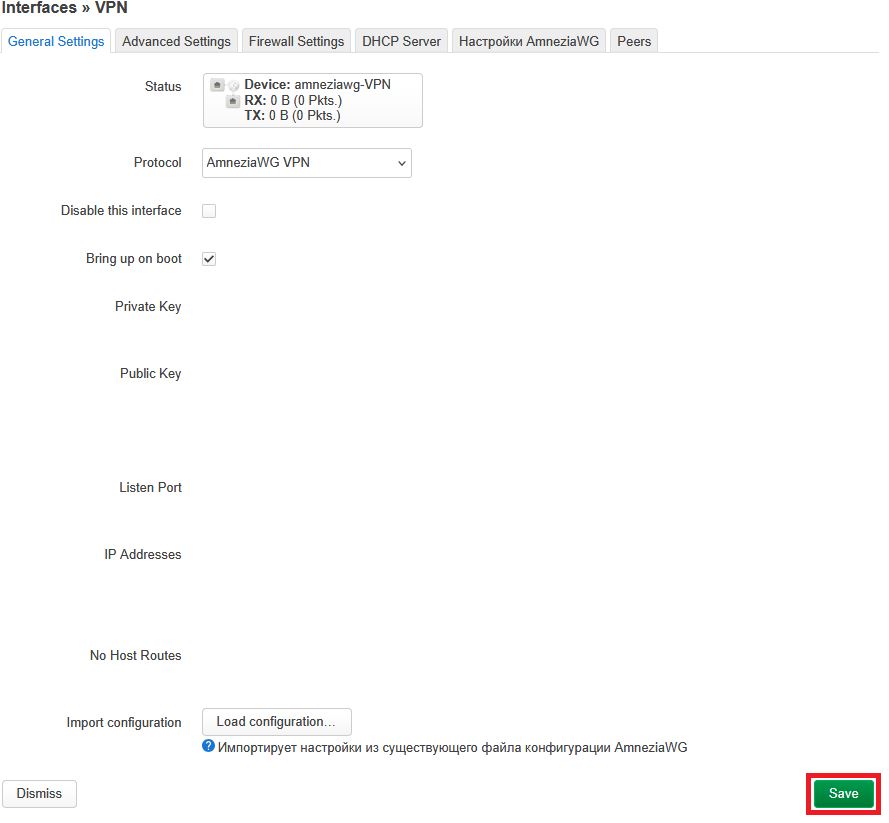
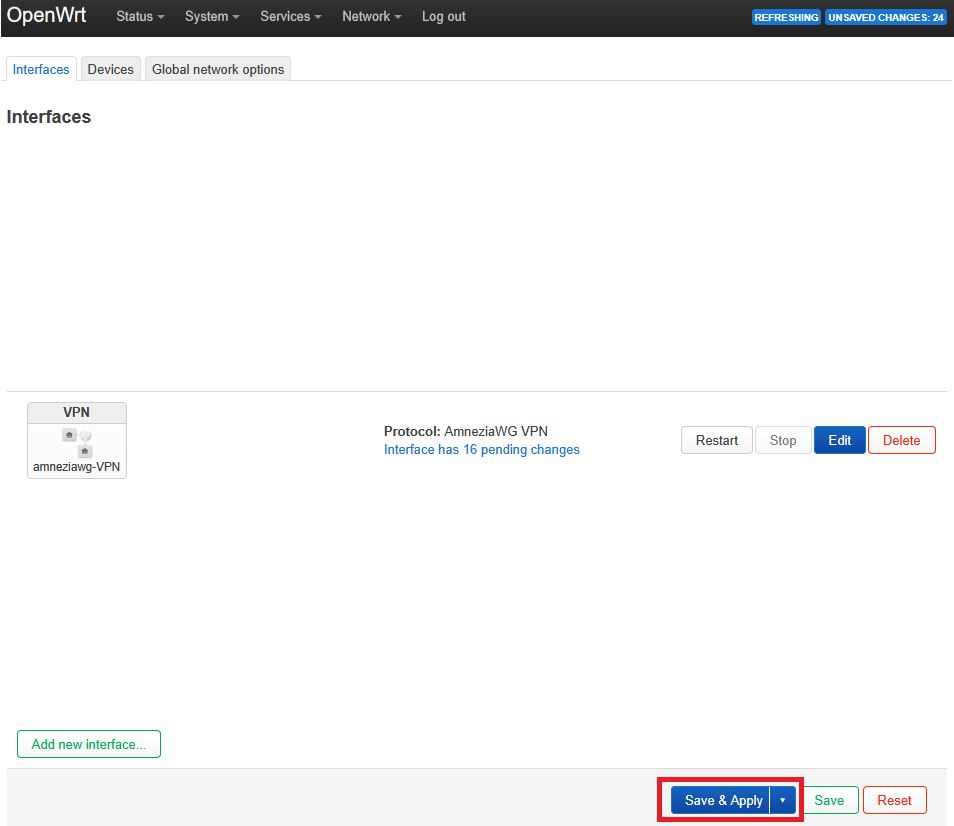
10. Then click Save, followed by Save & Apply.
Assigning a Firewall Zone
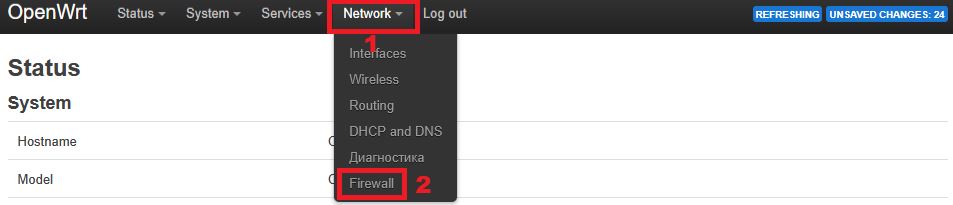
11. Go to Network → Firewall:
12. Create a new zone by filling in the parameters:
Input: reject
Output: accept
Forward: accept
Masquerading: ✅ enabled
MSS clamping: ✅ enabled
In Covered networks, specify the interface created in step 6
In Allow forward from source zones, select the lan zone
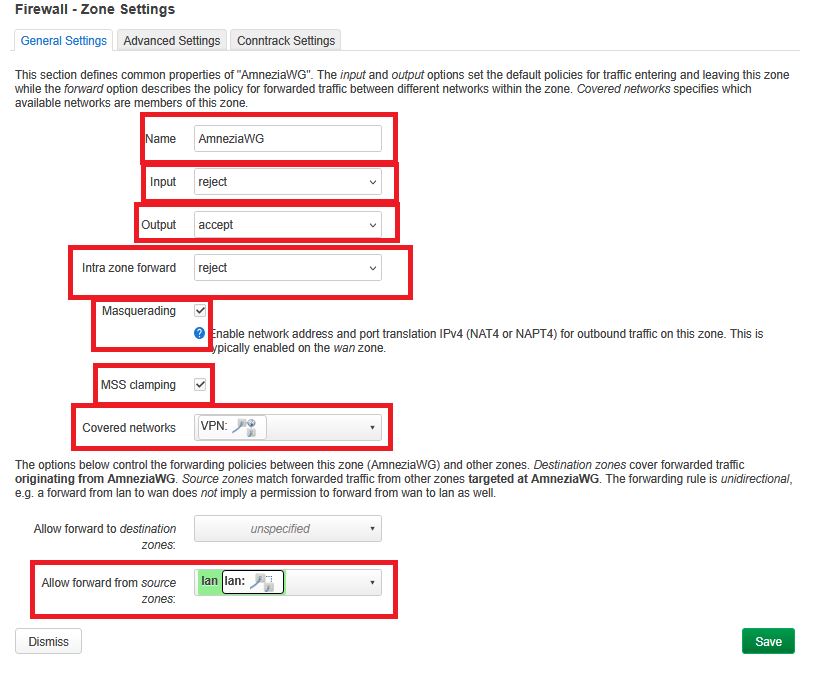
13. Click Save, then Save & Apply.
14. Click Edit on the lan zone:
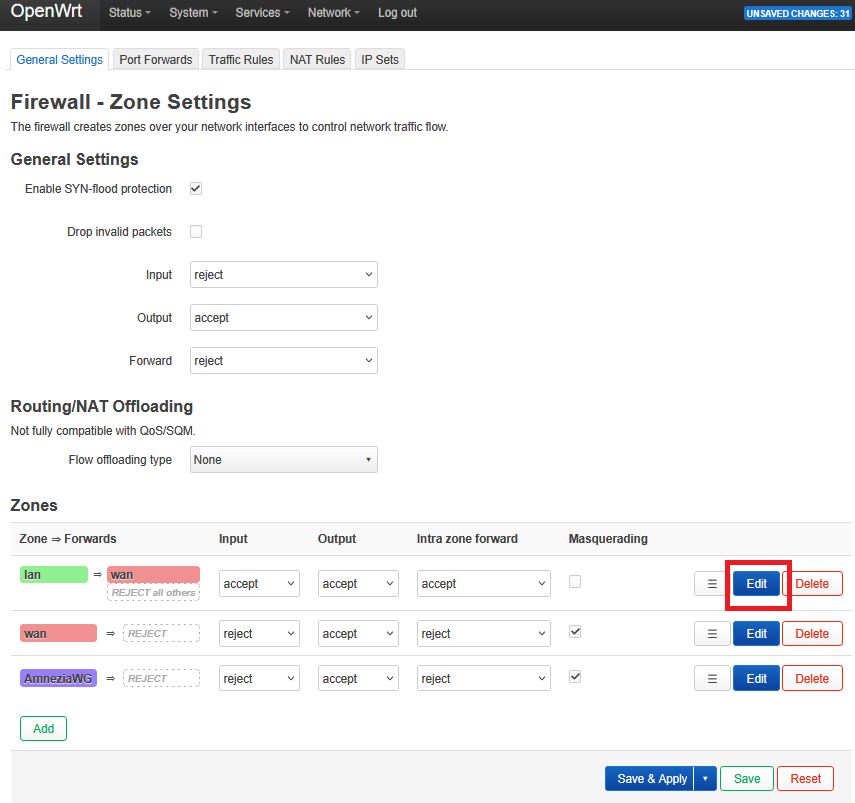
15. In the Allow forward to destination zones field, add the VPN zone you created:
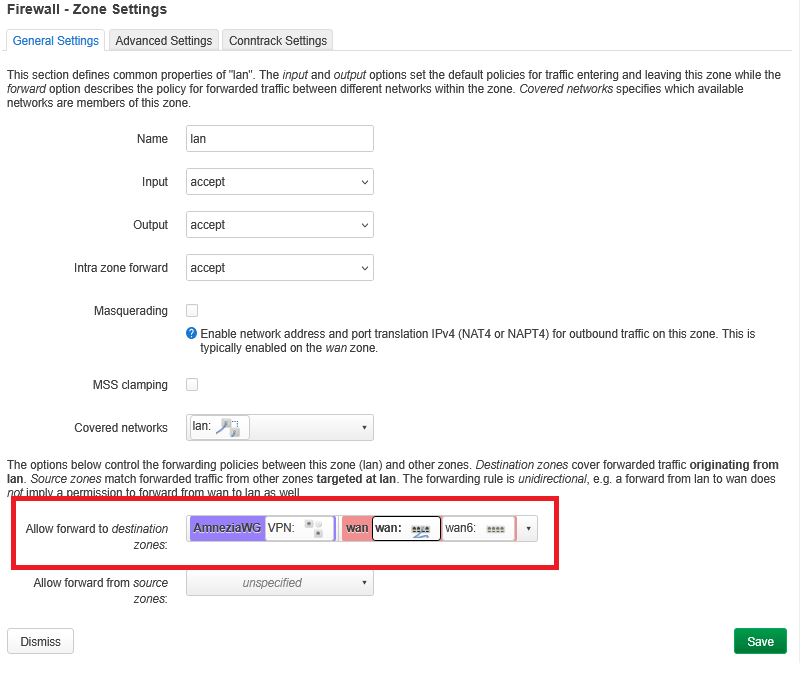
16. Click Save, then Save & Apply.
Configuring AmneziaWG in Podkop
17. Go to: Services → Podkop and fill in the fields:
Connection type: VPN
Network interface: your AmneziaWG VPN interface configured earlier
Community lists: Russia Inside (or any other list of your choice)
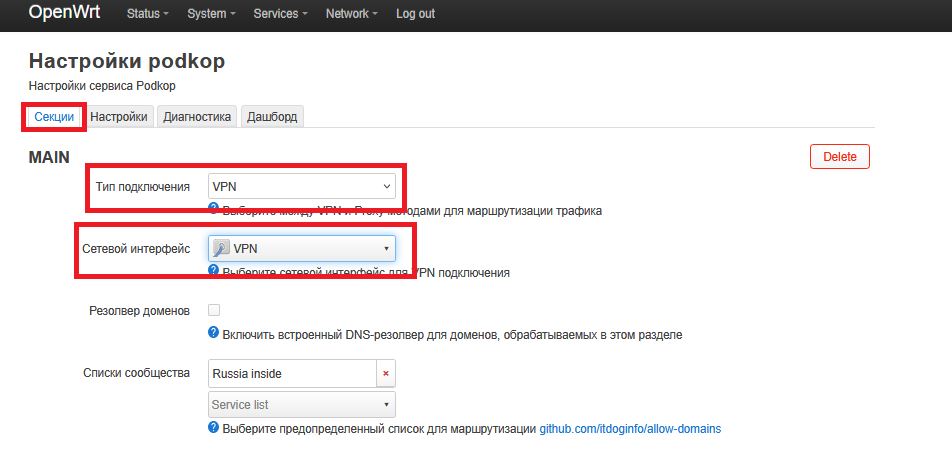
18. Click Save, then Save & Apply.
19. Go to the Diagnostics section and make sure Podkop is running:
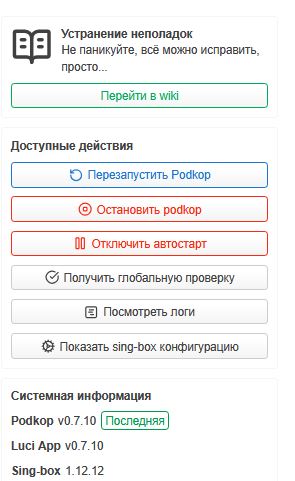
Important!
When using AmneziaWG via Podkop, not all router traffic is routed through the VPN interface—only certain resources. By default, the Russian Inside list is used. You can read more about the lists on GitHub.
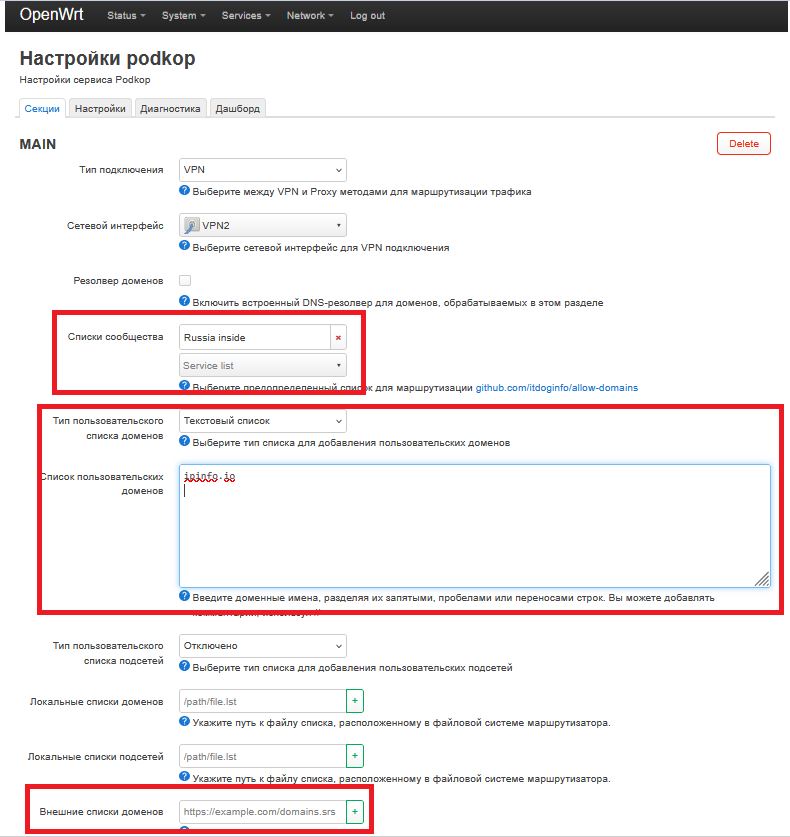
20. You can configure routing by selecting one of the provided community lists (more details are available on GitHub), or by setting up routing manually—choose Text List under Custom Domain List Type and enter the domains you want.
Additionally, you can add External Domain Lists or External Subnet Lists by specifying their URLs in the corresponding field in .srs format.
Checking the AmneziaWG Tunnel
21. Go to Status → AmneziaWG and check the parameters:
Latest handshake — less than 2 minutes
RX/TX — values are not 0
After this, devices connected to the router will use the VPN connection according to the routing configured in step 18 or 20.