AmneziaWG on Keenetic
AmneziaWG is a modified version of the WireGuard® protocol. Its main purpose is to bypass DPI (Deep Packet Inspection) and other VPN-blocking methods that easily detect "classic" WireGuard.
If your connection has Wireguard protocol filtering, we recommend using this protocol.
If your connection doesn't have restrictions of VPN protocols and services, it's best to set up a WireGuard connection using our guide.
Before installation, make sure that:
• your router is updated to the latest version (to import the configuration correctly, firmware version 4.3.6 or later is required)
• you have an AmneziaWG configuration file in .conf format from your Personal Area (in our example, the configuration file Lithuania.conf will be used)
1. Open the router’s web interface in a browser: http://192.168.1.1 (or specify a different router IP address) and go to: System Settings → Component options:
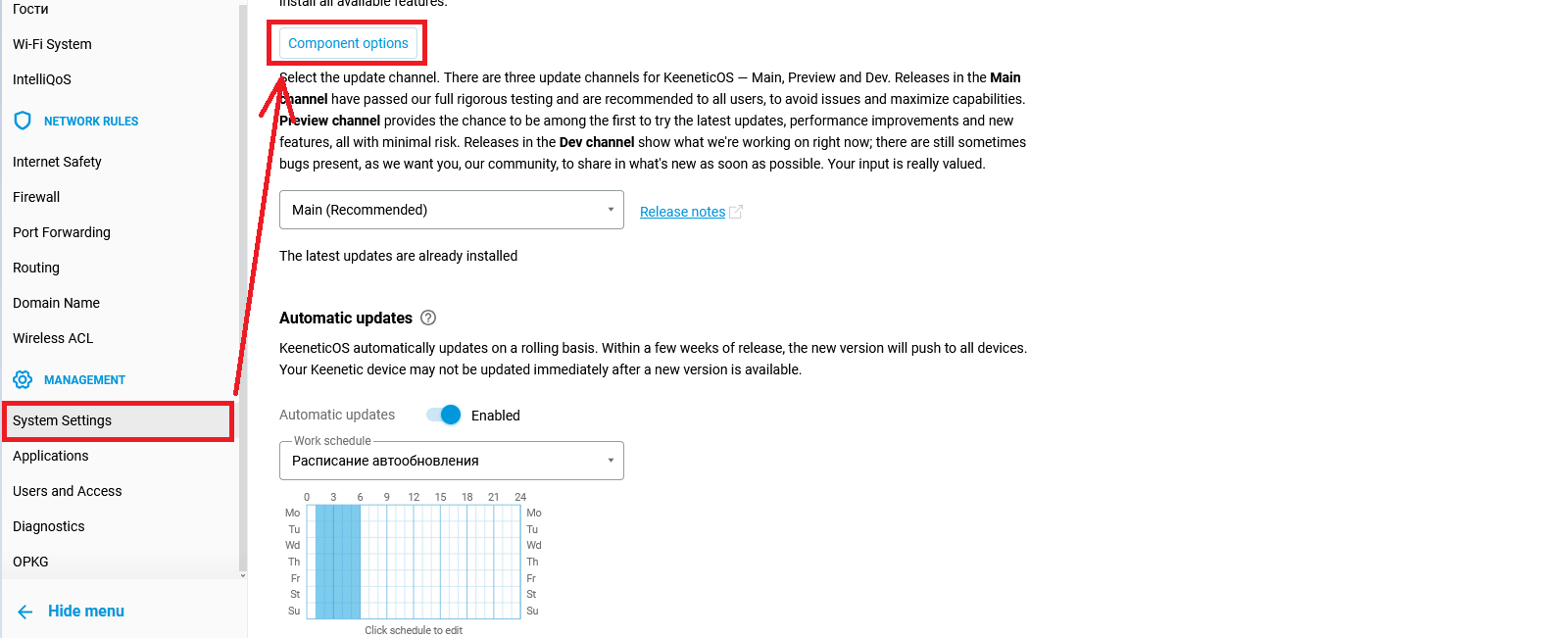
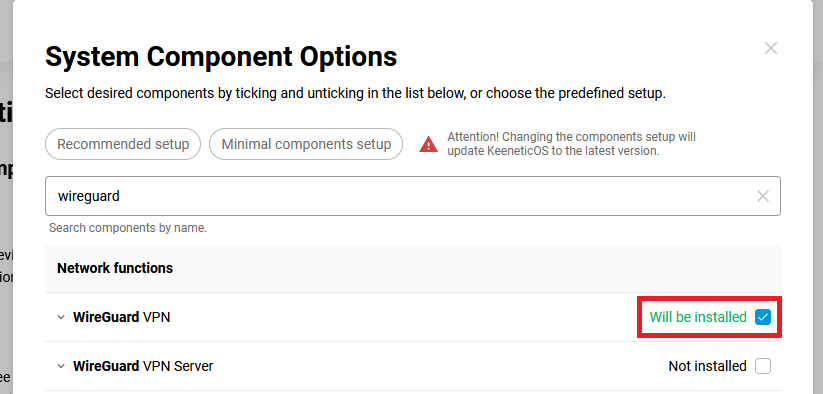
2. Enter "wireguard" in the search field, then check "WireGuard VPN" and click the "Update KeeneticOS" button.

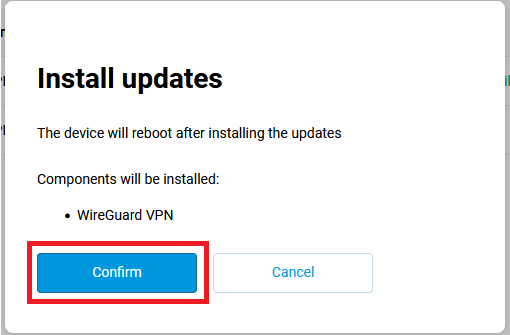
3. Confirm the component installation and reboot:
4. Open the router interface again and select the "Other connections" menu. Click the "Import from a file" button and select the file obtained from the AmneziaWG Configurator.

5. Click on the added connection:

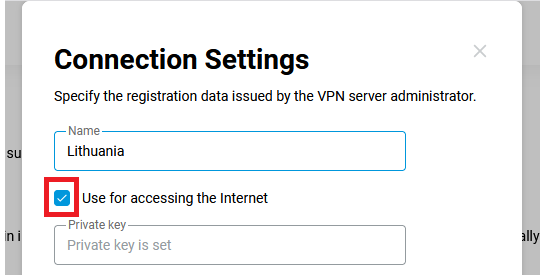
6. Check the "Use for accessing the Internet" option and click "Save":

7. Click the connection button:

8. Open the Policies menu. Under Default policy, move the newly added VPN connection to the first position and click Save:
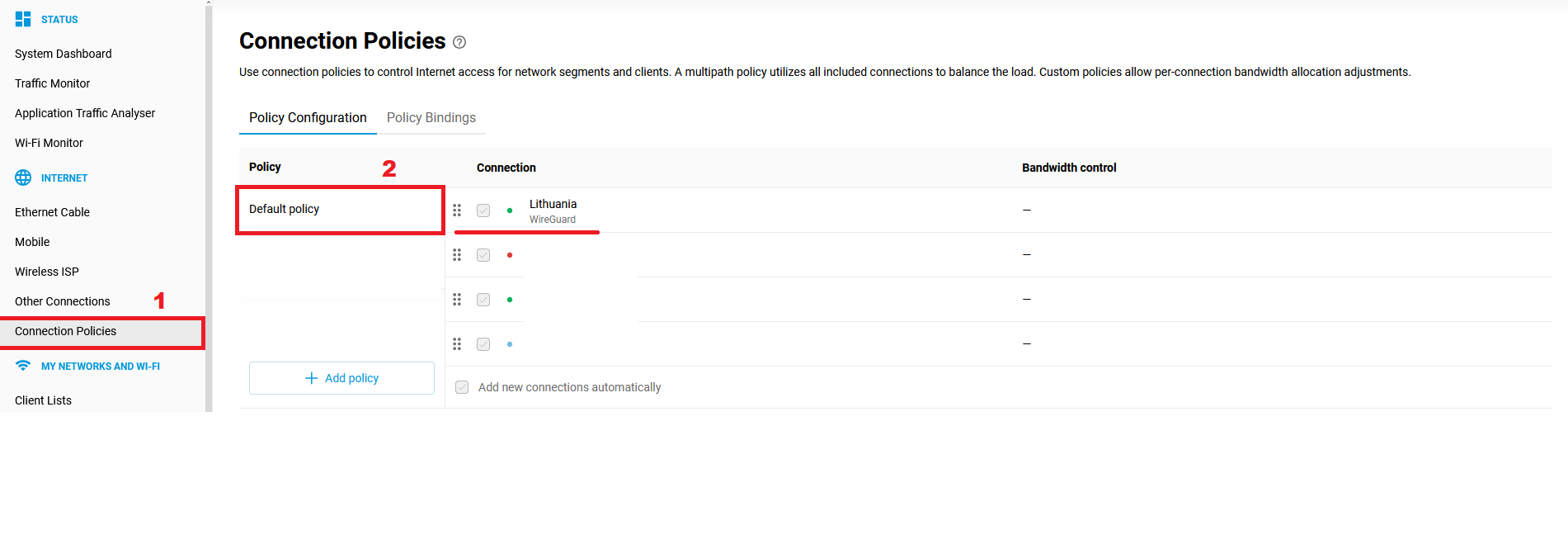

9. Done. Now all devices connected to the router use the VPN.
Configuring Connection Policies
If you need the VPN to work not for all devices on your network, but only for selected ones, you can do this using Connection Policies.
1. Open the "Connection Policies" menu and create an Internet access policy (in our example, the policy is named "VPN"):
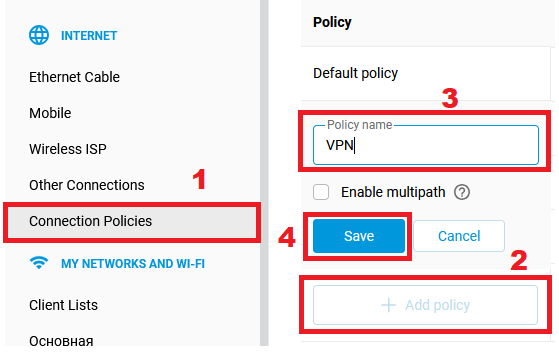

2. In the created policy, move the added VPN connection to the top, enable it, and click "Save":
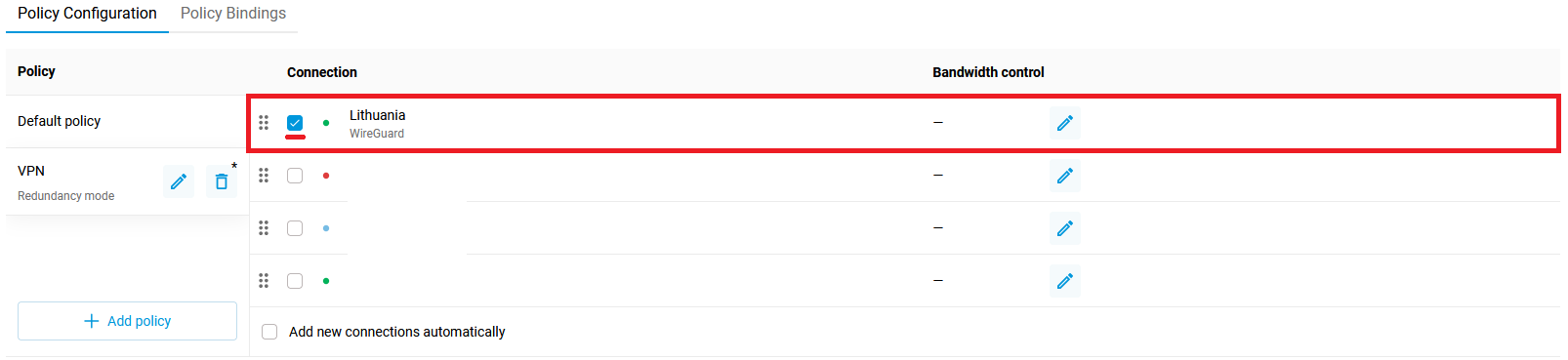

Important!
In the Default Policy, the newly created VPN connection must remain at the bottom of the list.
3. Open the "Policy Bindings" section. In the list on the left, select the policy from which you need to move devices or connection segments (in this example — "Default Policy"):
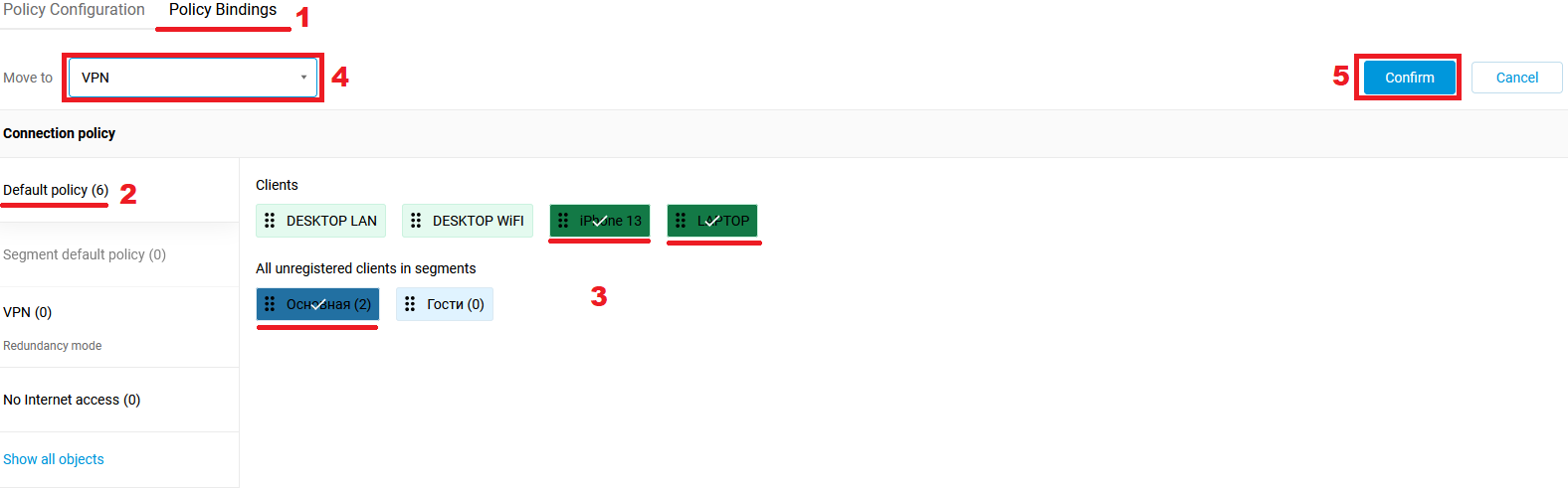
4. Now all selected clients/segments will access the Internet through the VPN when connected to the router.