VLESS on Ubuntu & Debian with GUI
VLESS (XTLS-Reality) disguises your traffic as ordinary TLS connections, making it indistinguishable from typical browser activity when accessing popular websites or services.
We recommend using this protocol in cases where your provider uses strict traffic filtering. In other cases, you can configure the AmneziaWG 2 protocol using our guide.
v2rayN is a graphical open-source client for Linux, Windows, and macOS, designed for connecting to proxy and VPN servers.
Before installation, make sure that:
• You are using Ubuntu 22.04 or Debian 11 with a GUI. On earlier versions, some steps may differ, while on newer versions they generally remain the same.
• You have created a vless:// link in the Personal Area.
Installing v2rayN
1. Download the v2rayN archive from GitHub:
- v2rayN-linux-64.zip for x86_64 (most likely this is your case)
- v2rayN-linux-arm64.zip for ARM
2. Open a terminal and navigate to the directory where you downloaded the archive (in our case — Downloads).
3. Extract the archive (enter the commands one by one):
cd ~/Downloadsmkdir -p ~/v2rayNunzip ~/Downloads/v2rayN-linux-64.zip -d ~/v2rayN
4. Move the folder:
mv ~/v2rayN/v2rayN-linux-64/* ~/v2rayN/rmdir ~/v2rayN/v2rayN-linux-64
5. Launch the application (enter the commands one by one):
cd ~/v2rayNchmod +x v2rayN./v2rayNImportant!
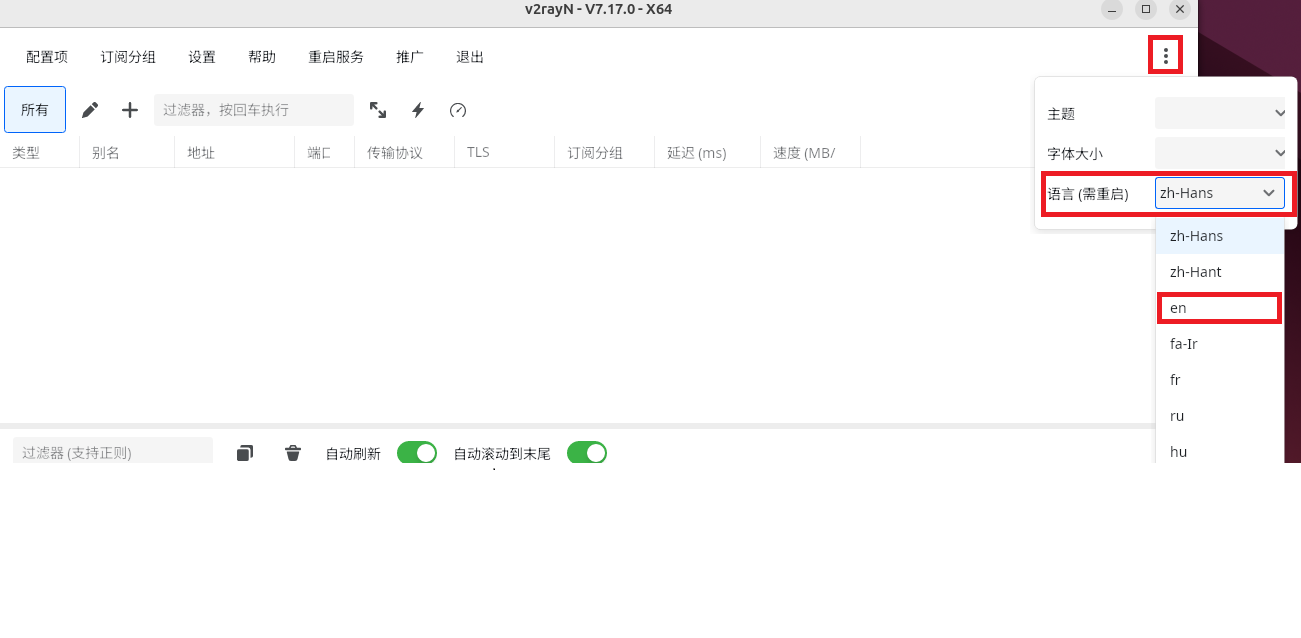
You can change the application language by clicking on the three dots in the top menu. Further configuration will be described for the application in English. After changing the language, you need to restart the application.
Importing VLESS Configuration
6. Copy your vless:// configuration from your Personal Area.
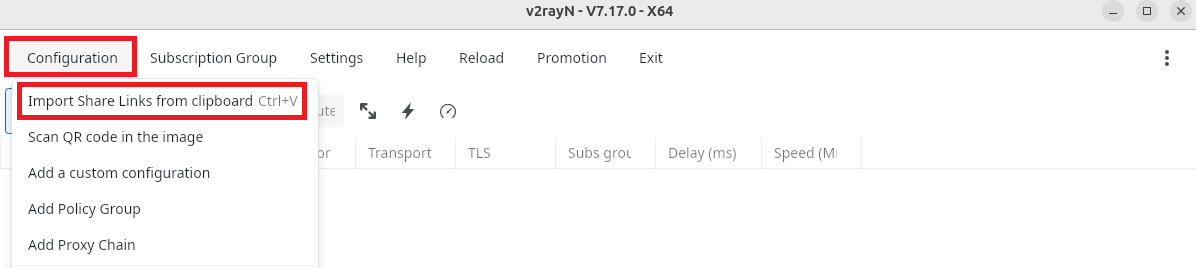
7. In v2rayN, open: Configuration → Import Share Links from clipboard
Routing Configuration
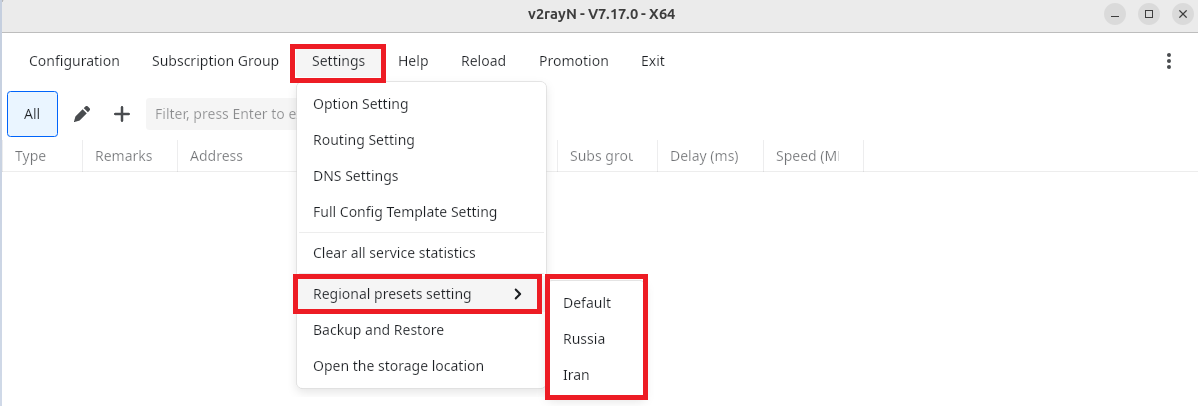
8. In v2rayN, open:
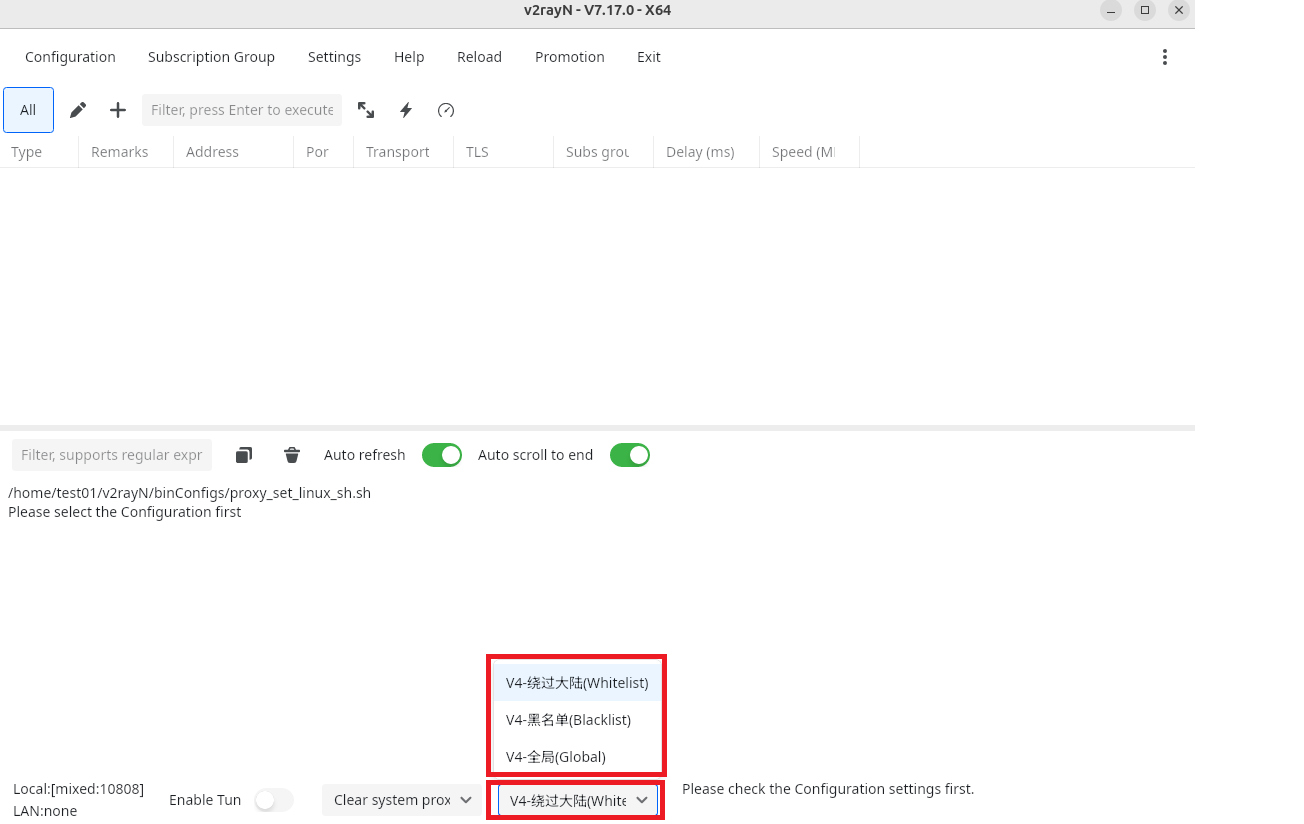
9. Select one of the routing rules:
Enabling VPN (TUN)
10. At the bottom of the v2rayN menu, enable TUN Mode and enter your sudo password.
11. Your device is now connected to the VPN.